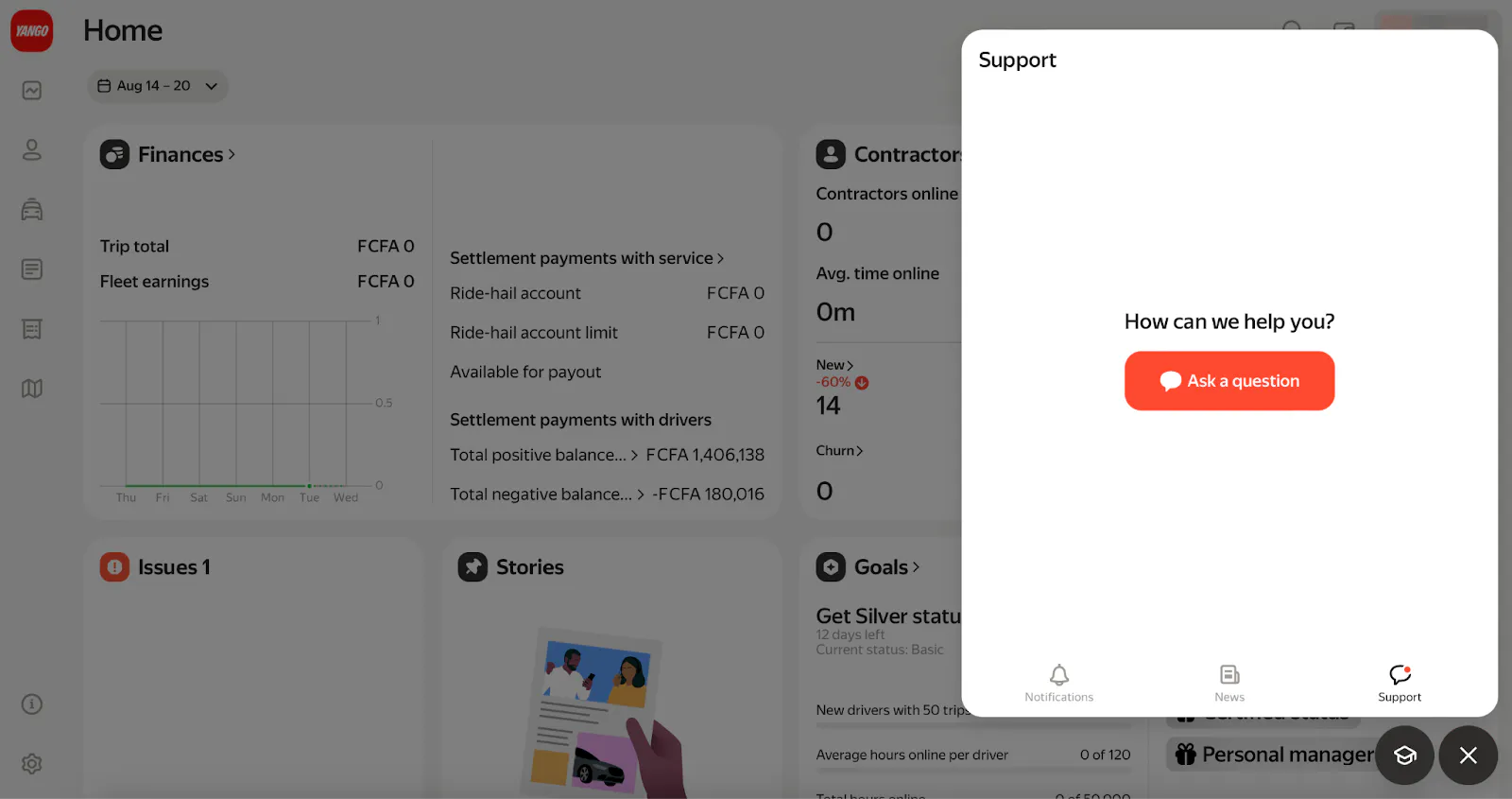
Look at the bottom right corner of any Fleetroom page
Find the bell button
Click on it to go straight to Support
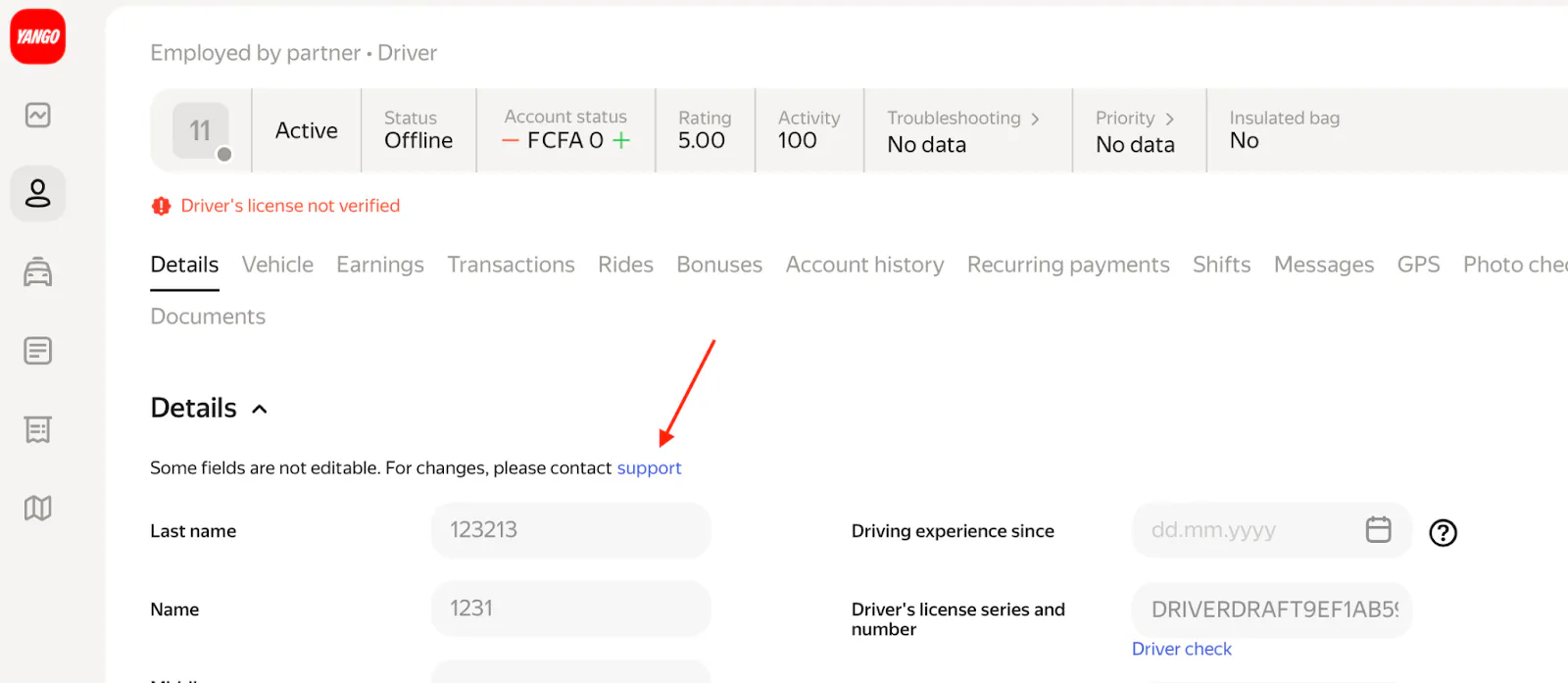
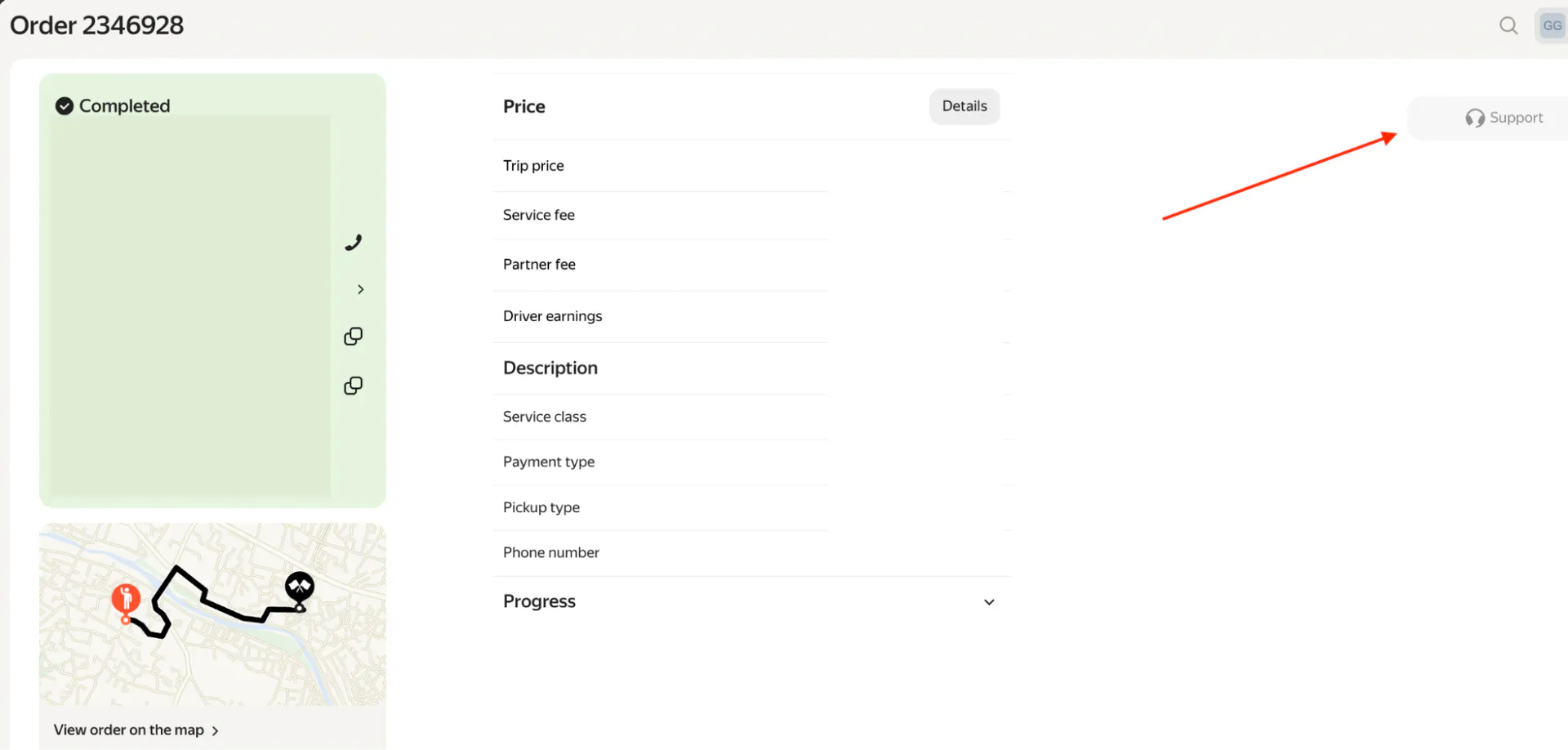
Method 3: From Driver or Vehicle Pages
You can also ask for help directly from:
Any driver's profile page
Any vehicle card page
Any trip order page
Support | The platform for Yango partners
How to Ask for Help - Step by Step
Choose what type of help you need (Topic):
Pick one of these topics :
Trip payment / Bonuses - Problems with money or bonus payments
Feedback about passenger - Issues with customers
Change driver/vehicle data - Need to update driver or car information
Not receiving trip requests - Driver not getting ride requests
Yango Pro / Fleetroom - Problems with the apps
Financial questions- Money-related questions
Select the specific problem (Subtopic).
Choose a more detailed option. For example:
Bonus → tell us which bonus type you're asking about.
If it's about a goal-based bonus, mention which time period.
Explain your problem clearly.
Write down what happened in simple words :
When did the problem happen?
Which driver or car is affected?
What exactly went wrong?
Attach a screenshot
If a screenshot can help explain your problem, add it :
Only use image files (PNG, JPG, JPEG)
Take a clear picture of the error or problem
Send your request.
Tap Send to submit your request.
Recommendations for filling out the form
When submitting your request, please make sure to fill in the fields correctly:
Trip ID: When asking about trip issues, always include the full order ID (copy it exactly from the order page).
Driver's license number: When asking about driver issues, always include the driver's license number exactly as it appears in the driver’s profile.
Vehicle license plate number: When asking about vehicle issues, always include the license plate number. Copy it exactly as shown in the vehicle card.
Attachments → You can only attach image files (PNG, JPG, JPEG).
Reporting technical issues with the Yango Pro or Fleetroom
If Fleetroom Platform Has Problems
If you want to report a technical issue in Fleetroom, always attach a screenshot of the Developer Console so the technical team can check the error faster.
To do this:
On Windows Computer:
Go to the page that has the problem
Press F12 key (or Ctrl + Shift + I) to open Developer Tools.
Click on the Console tab
Take a screenshot of the whole screen
Add this picture to your support request
On Mac Computer:
Go to the page that has the problem
Click View → Developer → Inspect Elements to open Developer Tools
Click on Console tab
Take a screenshot of the whole screen
Add this picture to your support request
If Yango Pro App Has Problems
When the driver's app isn't working :
Take a screenshot of the error message in the Yango Pro app
Add this picture to your support request
What Happens After You Send Your Request
Support Team Response
The Support Team will look at your request and answer you as quickly as possible
Rating the Help You Received
After getting an answer, you can rate how good the help was:
1 star = Very bad help
2 stars = Bad help
3 stars = OK help
4 stars = Good help
5 stars = Excellent help
Your rating helps us make support better for everyone.
Tips for Getting Better Help
Be Clear and Specific
Don't just say "it's broken" - explain exactly what's wrong
Give exact times and dates when problems happened
Use the exact information from Fleetroom (don't guess)
Include Pictures When Helpful
Screenshot error messages right when they appear
Take pictures of any confusing screens
Keep Important Information Ready
Save important trip numbers for future reference
Keep driver license numbers and car plate numbers easily accessible
This simple process ensures you get the help you need quickly and efficiently from the Yango support team.
To leave comments, log in to your Fleetroom account