Transactions
The Transaction Report is your central tool for managing fleet finances in Fleetroom. It tracks all money flowing in and out—from driver earnings and payouts to service fees and settlements with Yango. Let's explore how to use this powerful tool.
The Transaction Report is your central tool for managing fleet finances in Fleetroom. It tracks all money flowing in and out—from driver earnings and payouts to service fees and settlements with Yango. Let's explore how to use this powerful tool.
1. How to Access the Report
To start using the new report features, follow these steps:
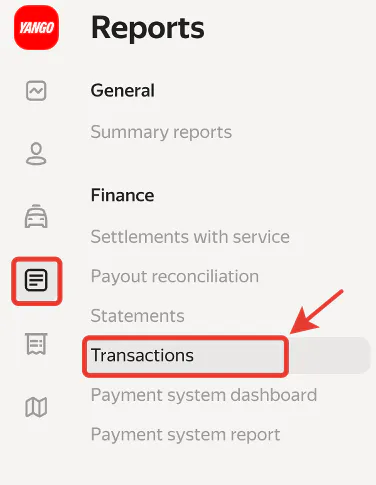
- Open the Finance menu in your Fleetroom.
- Click on Transactions to open the report section.
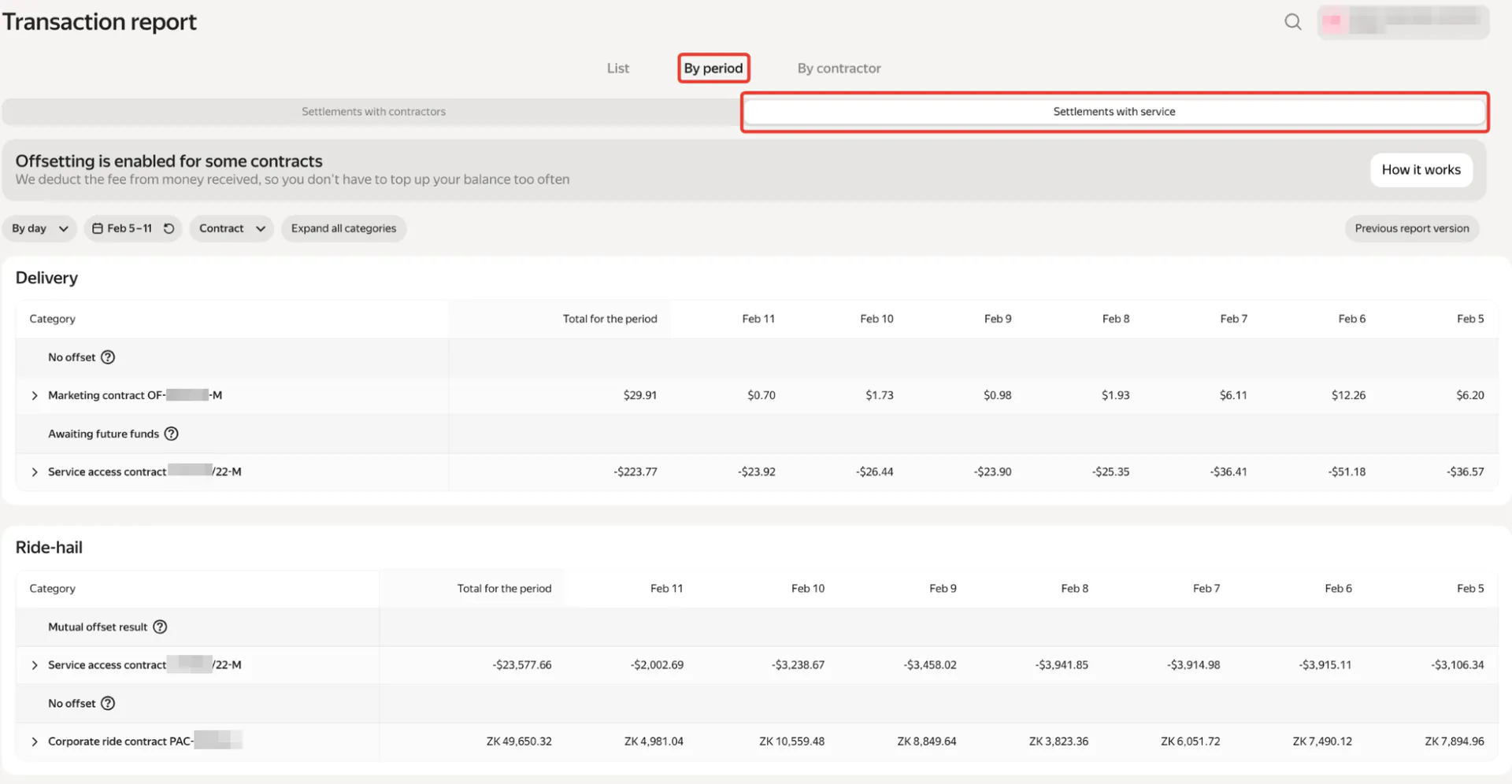
- Crucial Step: At the top of the page, click By Period.

Once “By Period” is selected,you'll see your transactions organized into two main sections:
- Settlement with Contractors

- Settlement with Service
2. Understanding Settlement with Contractors
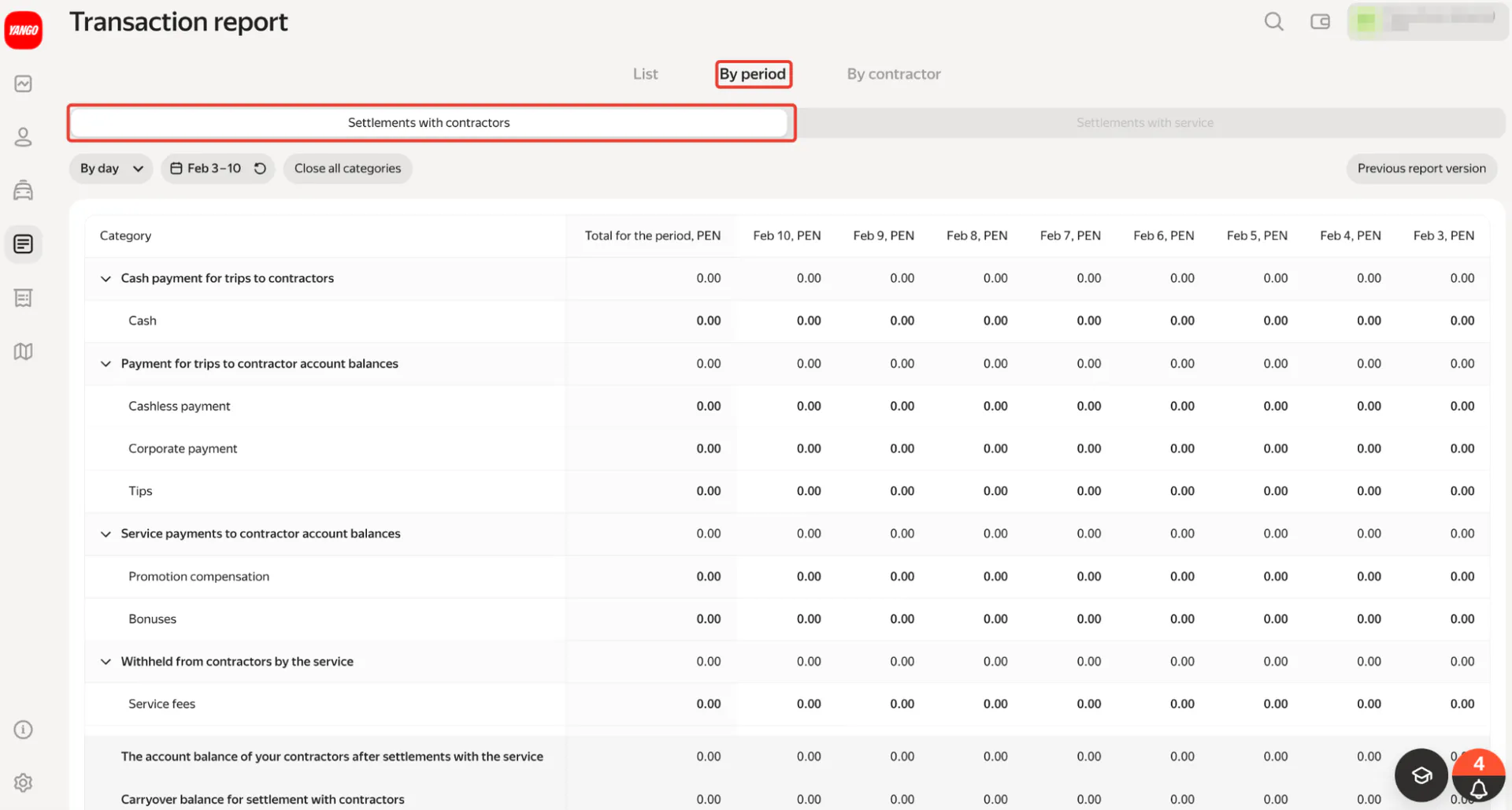
This section shows how money flows between you and your drivers (contractors). The transactions are organized into clear categories:
A. Income & Deductions
First, you see the calculation of the driver's net income:

- Payment for Orders: This includes all money your drivers earn from completing orders: (Cash, Cashless, Corporate payments, and Tips).
- Bonuses: This shows all incentives that increase your drivers' balances: (Bonuses and Promotion compensations).
- Service Fees: This displays fees that reduce your drivers' balances: (Yango service fees and other service payments).
After these categories, you'll see the Total Amount of Contractors' Income, which is your drivers' account balance after settlement with the service.
B. Partner Transactions
Next, you see the fees you charge the driver:

- Partner Fees: Commissions you deduct from the driver.
- Other Partner Service Fees: Any additional charges you apply.
C. Reading Your Carryover Balance

At the end of this section, you'll see the Carryover Balance for Settlement with Contractors. This number tells you an important story:
- Positive Number (+): Your drivers earned more during this period than they received through instant payouts. You owe this amount to the fleet balance.
- Negative Number (-): You paid your drivers more than they actually earned during this period. The fleet has paid out this excess amount.
3. Understanding Settlement with Service
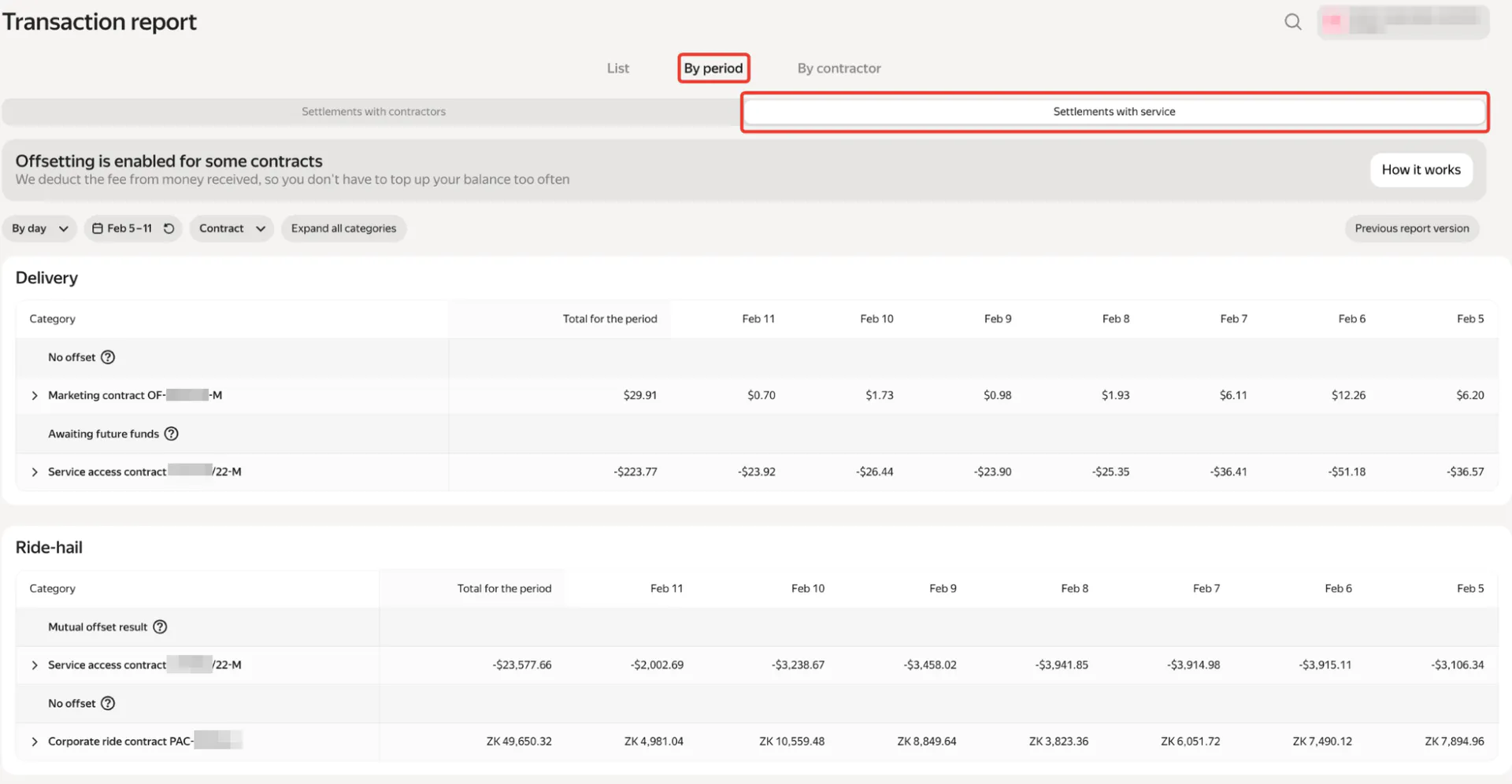
This is a completely new feature that shows you the total service fees and other contract transactions in dollar terms—information you couldn't see before. This section helps you understand exactly what the service deducts from your account and credits to it.
View by Business Type & Contract

Your transactions are organized by business type:
- Ride-hail: If you operate ride-hailing services
- Delivery: If you operate delivery services
If you operate both types of services, you'll see both sections in your report.
Under each, transactions are grouped by Contract.
Understanding Contracts
Under each business type, your transactions are grouped by contracts. Each contract shows only the transaction categories that apply to it.
For example: Under your Service Access contract, you'll see:
- Service fees that were deducted
- Cashless payments that were credited
You won't see bonuses here because those belong to your Marketing contract.
This distinction is important because different items appear under different contracts:
- Service Access Contract: Typically shows Service Fees (deducted) and Cashless Payments (credited).
- Marketing Contract: Typically shows Bonuses.
Why this helps: You can now easily compare exactly what the service credits to driver balances versus what is recorded on your specific partner contracts.
Using the Contract Filter
You can filter this section to view a specific contract by using the Contract Filter at the top of the section.

4. Understanding Offset
Offset is an important feature that determines whether service fees can be deducted from certain contracts. When Offset is enabled in your account, you'll see a notification and can access a brief tutorial inside Fleetroom. Your contracts are divided into two groups:
Quick Summary:
- Mutual Offset: We can deduct service fees from earnings here (e.g., deducting fees from your bonuses).
- No Offset: We cannot deduct fees here; you get paid the full earnings.
A. Mutual Offset
Contracts in this group participate in mutual offset, which means positive amounts from these contracts can be used to pay your service fees.
How it works:
- In some regions, service fees can be offset against bonuses from your Marketing contract, meaning we can deduct service fees from your bonus earnings.
- If you don't have a Marketing contract in Mutual Offset, service fees will be deducted from cashless payments under your Service Access contract.
- Most commonly, both your Service Access and Marketing contracts participate in mutual offset, so service fees can be covered by bonuses and other Marketing contract amounts when needed.
B. No Offset
Contracts in this group do not participate in offset. This means:
- Service fees cannot be deducted from these contracts
- All earnings from these contracts are paid to you without any service fee deductions
Note: If Offset is enabled for your account, you will see a notification and a brief tutorial inside Fleetroom explaining specific details for your region.
5. Viewing Multiple Fleetrooms (Consolidated View)
If you manage multiple Fleetrooms, you can now view consolidated reports across all your accounts instead of opening each one separately. You no longer need to log in and out to check totals.

To view your consolidated report:
- Click the filter at the top of the Transaction Report page.
- Select All Fleetrooms.
- Select the common contracts you want to view.
This will combine the data from all your accounts into one report, allowing you to see, for example, your total Partner Fees across your entire business operation instantly.
This saves you time and gives you a complete picture of your entire fleet operation.