Access management
At first, only the taxi company Director has access to Fleetroom. But they can add new users with different access rights at any time, including dispatchers, accountants, administrators, and others. They too can monitor trips, download reports, and manage information about drivers, couriers, and veh
At first, only the taxi company Director has access to Fleetroom. But they can add new users with different access rights at any time, including dispatchers, accountants, administrators, and others. They too can monitor trips, download reports, and manage information about drivers, couriers, and vehicles.
In the Access Management section, you can add new employees and configure their roles.
How to add employees
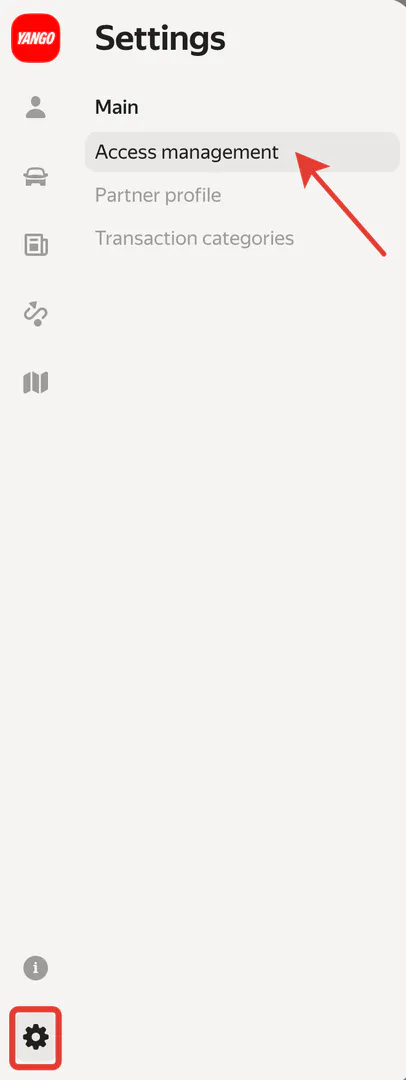
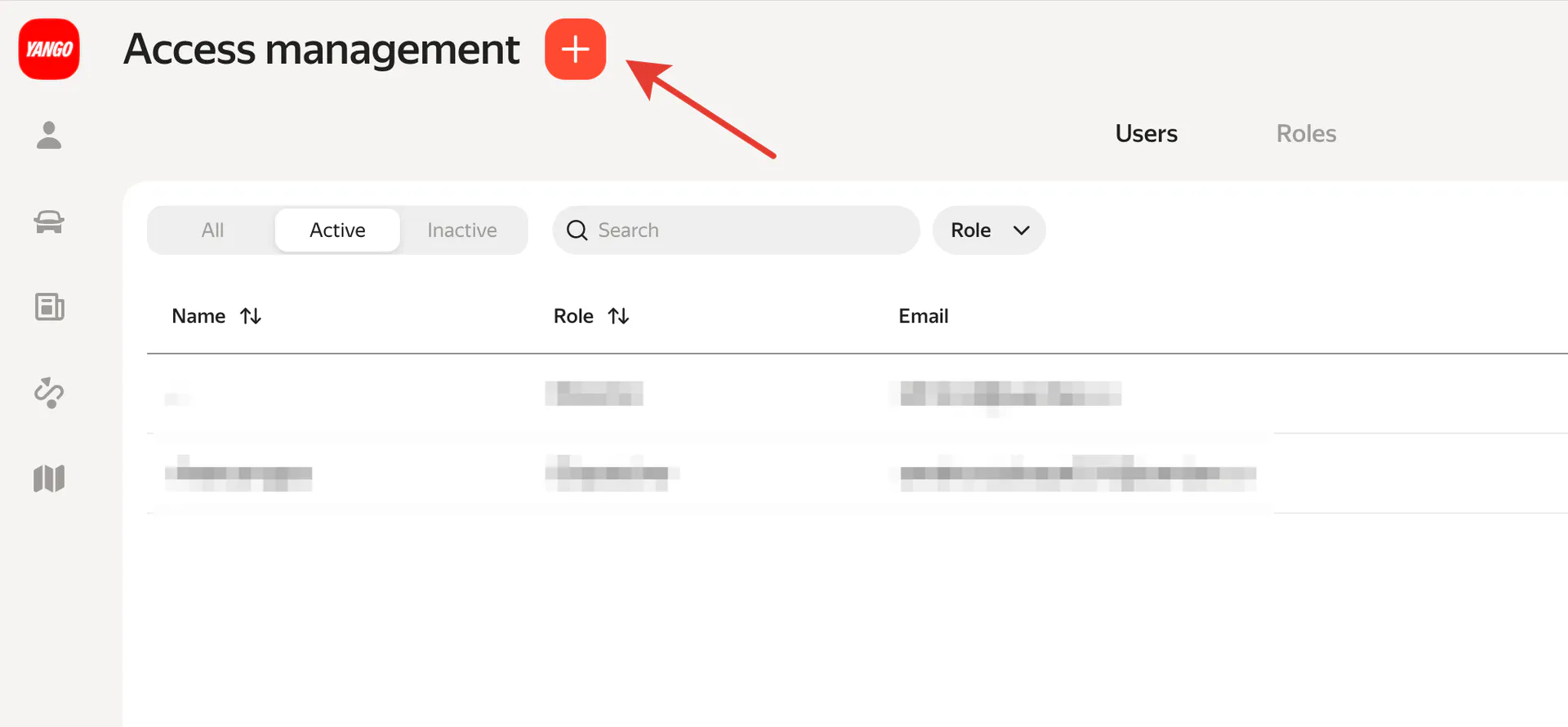
To add a new user, in the left menu go to the Settings→ Access Management, Users tab. To create a new user, click the "+" button.
A card will open to create a new user:
- Role. Select which role the new user has. Different rights and access can be given to users with different roles. For example, you can allow accountants to download financial reports, but prohibit them from creating and editing driver and courier cards.Fleetroom has the following roles by default: director, dispatcher, administrator. You can edit these roles and add new ones in the Settings → Access Management, Roles tab.
- Name. Enter for your convenience.
- Phone number. Enter the employee's contact phone number.
- Email. Enter the new user's email here. The email domain must be Yandex — other email services won't work.

How to set access rights
Users with different roles can work in Fleetroom, including the director, accountants, mechanics, and more. Each role can be configured with its own rights and access. For example, you can make it so mechanics can edit vehicle cards, but can't download financial reports, or vice versa for accountants.
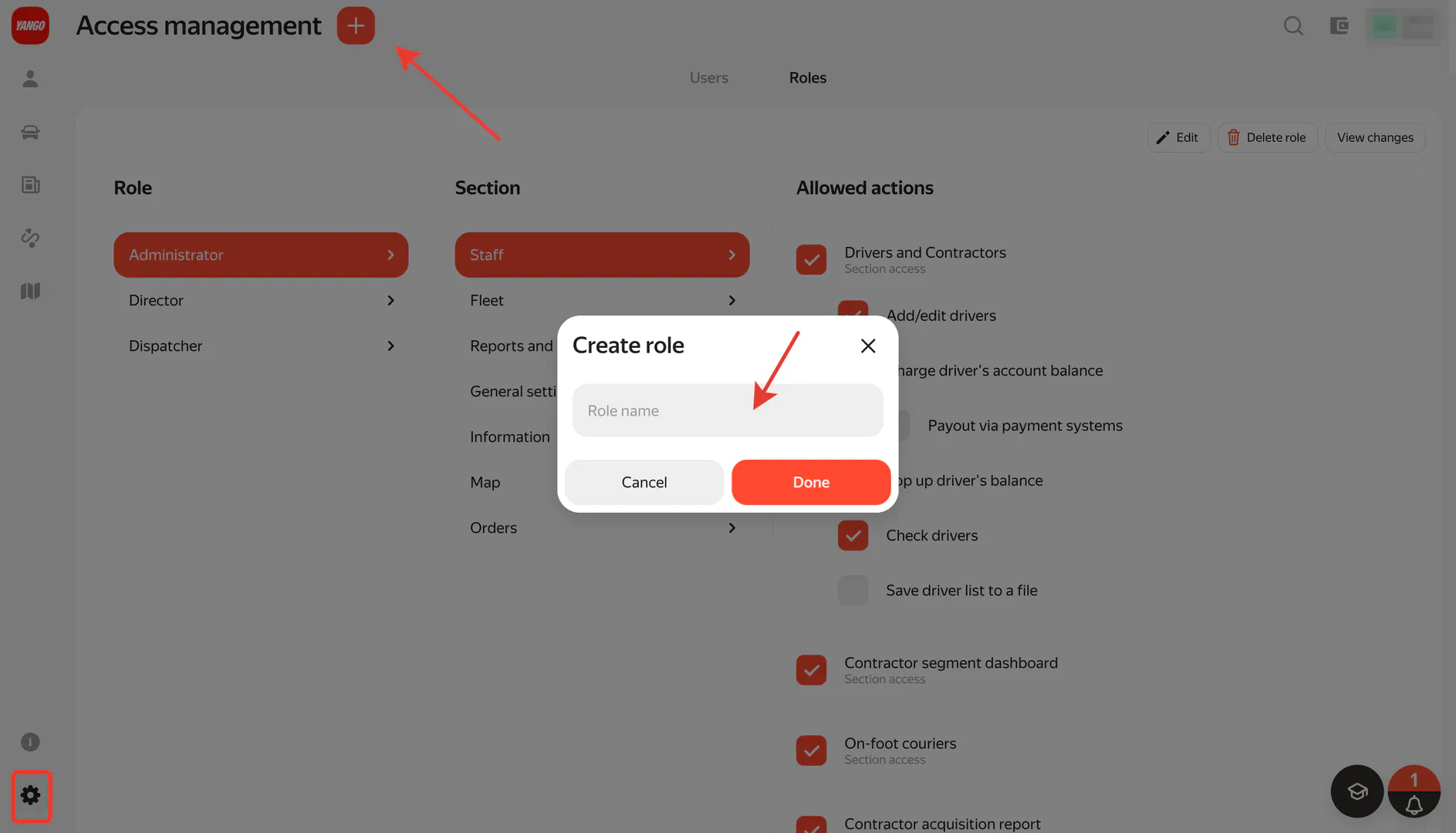
To add a new user role, click «+» in the Role section. Enter a name for the role in the new window and click Done.
To configure rights and access, select the user role in the left column, and then choose the section and action you want to perform.
The right to download any report can be set, and access can be given to employees with any role. View, Create and Edit, Download Files — each of these functions and any other tool in each section of Fleetroom can be assigned separately for each role.
To delete an old role, first change the role to a different one for users, then click the Role name in the Role section → Delete role.
How to change Director accounts
- Create a new account and assign it any role available in Fleetroom.
- Email support from the current director's email address. Include the account and email address you want to re-register the director's account to.
- The Support team will check the information and confirm the account of the new director.
How to restrict access to Fleetroom
If a user stops working with your fleet, you can restrict their access to Fleetroom.
To do this:
- Find the user's card in the Access Management section → Users. You can use the Search field for convenience.
- Click the card in Fleetroom.
- Uncheck the Activity field → Done.Done! Now the user can no longer log in to your Fleetroom.

How to set up notifications
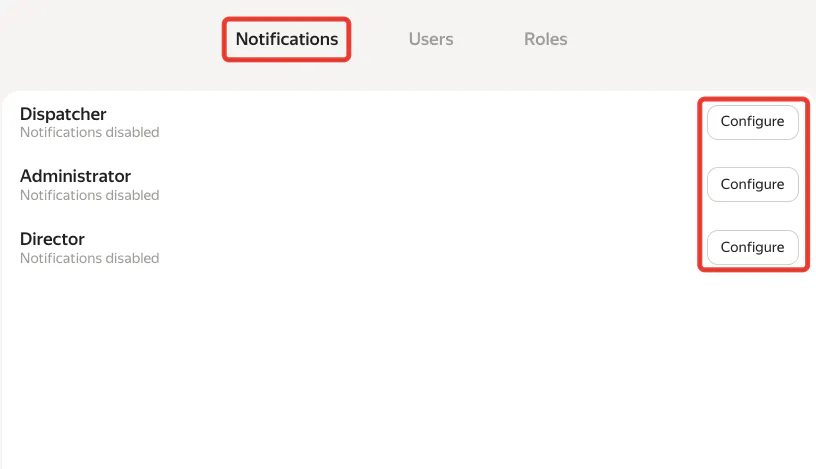
In the «Notifications» tab, you can specify which system events employees with different roles will be notified about. Notifications can be received by email, in Telegram, or you can set up web notifications in the browser.
What notification types are currently available:
- Candidate created;
- Contractor access to trip requests restricted;
- Contractor restored access to trip requests.
How to set up: first, specify which notification types will be sent to different employees, then select the channels for sending them.
To send notifications via Telegram, you need to subscribe to the @YangoPartnerGhana_bot bot and send it your phone number (it must match the data in the Dispatcher). Copy the link from the Dispatcher and send it to everyone who has been assigned a role.
We will soon add new notification types — stay tuned for updates!